For bidders participating in supported LTM Works tenders.
USER MANUAL • BIDDER AUTOMATION
LTM Works BOQ AutoFill – Bidder User Manual
A step-by-step guide to automatically select “Yes” in supported Bangladesh e-GP LTM Works BOQ calculation dropdowns with one user-initiated AutoFill action.
Reduce repetitive dropdown selection while keeping tender review, calculation verification, saving, signing, and submission under your control.
- One-Click AutoFill
- Up to 200 Supported Dropdowns
- Live & Training Support
- Local Browser Processing
- Free for All
Quick information
Updates supported pending calculation dropdowns to “Yes”.
Tender information is not sent to Bidorix servers.
Review, Save, Sign, Encrypt, and Submit remain manual.
ABOUT
About LTM Works BOQ AutoFill
Bidorix LTM Works BOQ AutoFill – Bidder is a productivity Chrome Extension for bidders working with supported Bangladesh e-GP LTM Works BOQ forms.
An LTM Works BOQ may require the same “Yes” choice across many supported calculation dropdowns. Instead of selecting each one manually, the bidder can start one AutoFill action. The extension then changes only eligible pending supported dropdowns to “Yes”.
Important responsibility boundary
Bidorix does not calculate Unit Rates, Prices, Amounts, Amounts in Words, or Grand Totals. Related financial calculations are performed by the Bangladesh e-GP System using its existing functionality.
PREPARATION
Before Using AutoFill
- Install the latest version of the extension.
- Sign in to the Bangladesh e-GP System normally.
- Open the required LTM Works tender.
- Navigate to the supported Priced Bill of Quantities (BOQ) page.
- Confirm that the correct tender and BOQ are open.
- Ensure the page has loaded completely.
- Review existing BOQ information before running AutoFill.
Use AutoFill only on the correct tender and BOQ page.
The extension assists with repetitive selection; it does not replace bidder review.
INSTALL
Step 1 — Install the Extension
- Open the official Chrome Web Store listing for Bidorix LTM Works BOQ AutoFill – Bidder.
- Click Add to Chrome.
- Review the requested permissions.
- Click Add Extension.
- Wait for Chrome to confirm installation.
- Optionally pin the Bidorix extension to the Chrome toolbar.
OPEN BOQ
Step 2 — Open the LTM Works BOQ
Log in to the appropriate Bangladesh e-GP environment and navigate to the LTM Works tender BOQ.
SUPPORTED LIVE ENVIRONMENT
Bangladesh e-GP Live
www.eprocure.gov.bd
SUPPORTED TRAINING ENVIRONMENT
Bangladesh e-GP Training
training.eprocure.gov.bd
Open the supported Priced Bill of Quantities (BOQ). The extension activates only when the expected LTM Works BOQ structure is detected.
DETECT
Step 3 — Confirm Page Detection
When a compatible LTM Works BOQ page is detected, Bidorix shows a verified ready state such as LTM Works BOQ AutoFill — Ready. A floating Select All “Yes” control may also appear when enabled.
Do not run AutoFill on an unsupported page.
If Bidorix cannot verify the required page structure and supported controls, the main action remains unavailable.
REVIEW
Step 4 — Review the Detection Summary
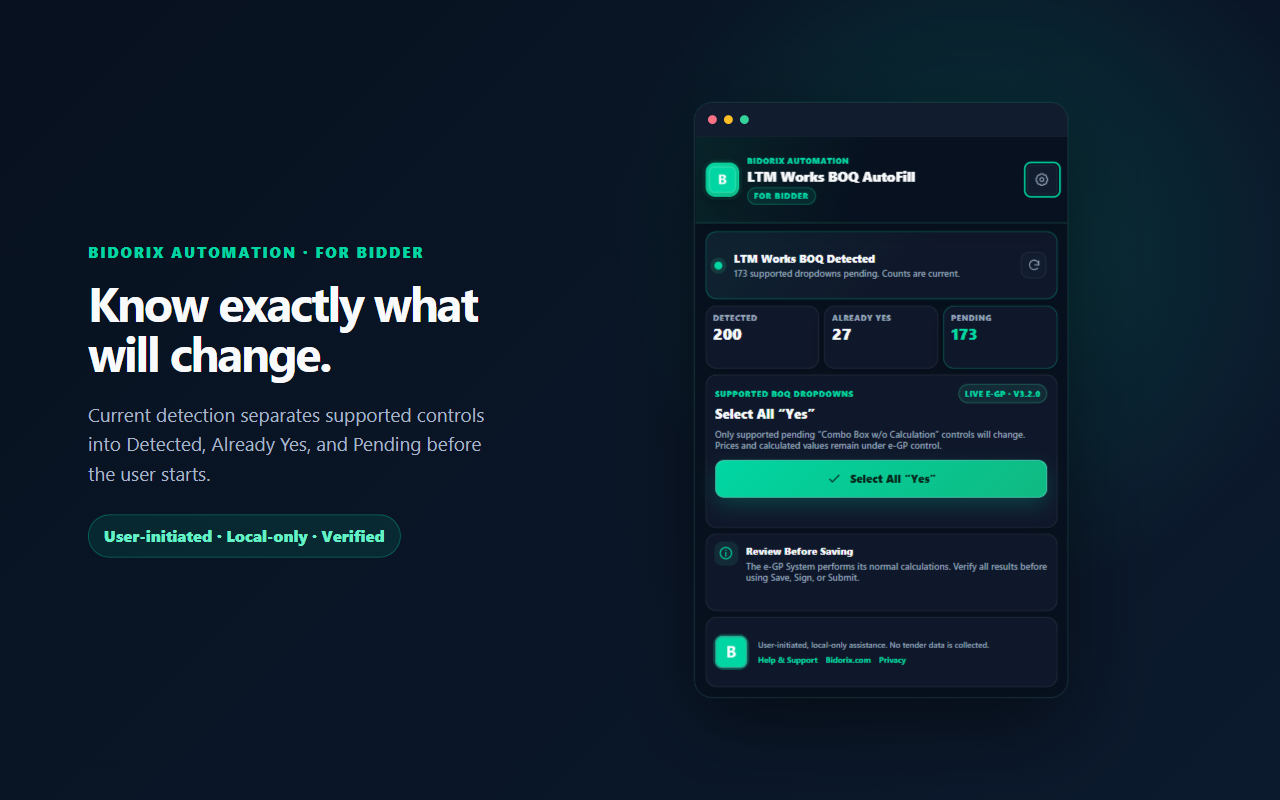
Open the extension popup and check the detected statistics before changing anything.
All supported calculation dropdowns detected.
Supported dropdowns already set correctly.
Eligible supported dropdowns still requiring “Yes”.
Counts are examples. Your tender may contain a different number of supported dropdowns.
SELECT ALL “YES”
Step 5 — Start AutoFill
After confirming the correct BOQ, click Select All “Yes” from the popup, floating button, or page-detection notice—depending on your settings.
AutoFill is always user initiated.
The extension does not begin modifying dropdowns merely because a supported page was opened.
Select All “Yes”
User confirmation may appear when enabled.
PROCESS
Step 6 — Wait for AutoFill to Complete
Selecting…67 / 200
34% complete
While processing, do not:
- Close or refresh the BOQ page.
- Navigate to another tender.
- Start another AutoFill process.
- Manually change fields currently being processed.
Keep the page open. Bidorix updates supported dropdowns and dispatches the normal page events expected by the e-GP interface.
CHECK RESULTS
Step 7 — Review Automation Results
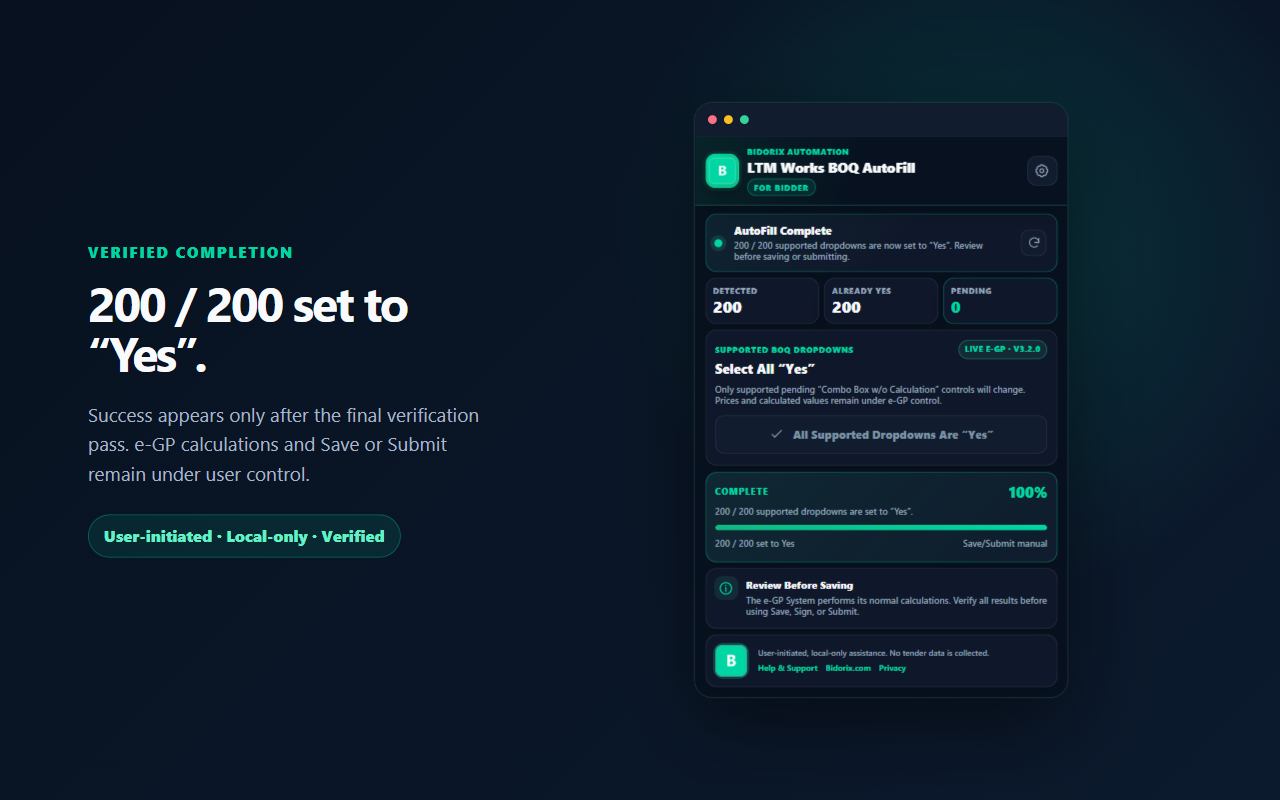
After processing, expand Automation Results and verify the outcome. A full result can show 200 / 200 Complete.
Detected200
Already Yes25
Updated175
Final Yes200 / 200
Pending0
Failed0
Elapsed TimeShown after run
Updated means changed during this run. Already Yes means preserved. Final Yes is the verified total. If Pending or Failed is greater than zero, inspect those controls before continuing.
VERIFY CALCULATIONS
Step 8 — Review the Calculated Values
After dropdowns change to “Yes”, the Bangladesh e-GP System performs its own related calculations, which may include:
- Unit Rate or Price
- Unit Rate or Price in Words
- Amount
- Amount in Words
- Grand Total or related totals
Bidorix does not perform financial calculations.
Verify every value produced by the Bangladesh e-GP System. Successful AutoFill does not mean the tender is ready for submission.
SAVE / SIGN / SUBMIT
Step 9 — Complete the e-GP Process Manually
- Verify every relevant calculation.
- Verify the tender and BOQ information.
- Correct anything necessary through the normal e-GP workflow.
- Save manually.
- Complete signing or encryption where applicable.
- Submit manually only when you are satisfied with the tender.
Click Save
Sign the tender
Encrypt the tender
Submit the tender
Complete submission
Final control always remains with the bidder.
SETTINGS
Customize Your Experience
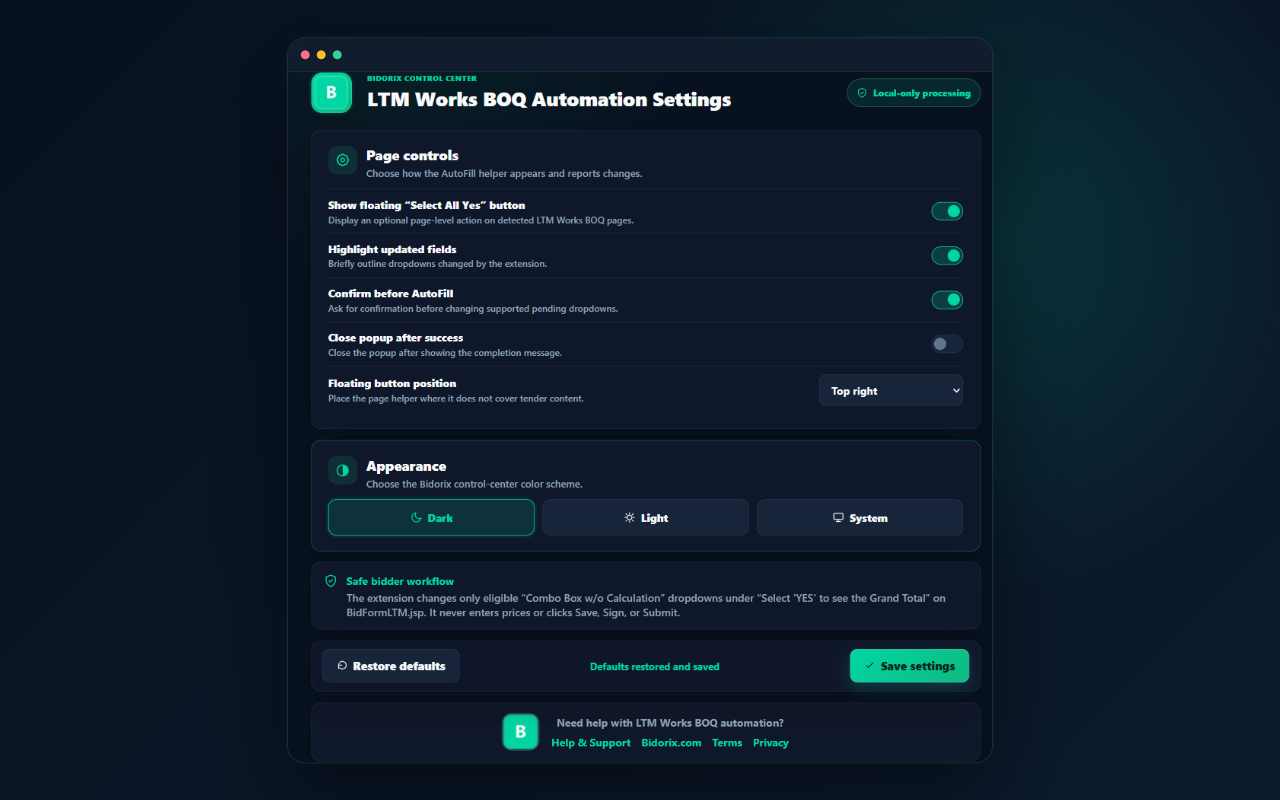
Choose System, Light, or Dark.
Show or hide the action on supported pages.
Choose the preferred floating-button position.
Briefly outline controls changed during AutoFill.
Show the Bidorix notice after compatible page detection.
Ask for confirmation before supported pending controls change.
Optionally close the popup after displaying a successful result.
HELP CENTER
Troubleshooting
Extension Does Not Detect the Page
- Confirm that you are on a supported LTM Works BOQ page.
- Wait for the page to finish loading.
- Refresh the page.
- Confirm the extension is enabled.
- Confirm you are using the latest version.
No Supported Dropdowns Found
Possible causes include a wrong page, unsupported BOQ structure, incomplete page loading, or no compatible calculation dropdowns.
Some Dropdowns Remain Pending
Do not submit immediately. Review pending fields manually, then reopen the extension and check the detection and result summaries.
Some Fields Show Failed
Review the affected e-GP BOQ controls directly. Never assume a failed control was changed successfully.
Calculations Are Not Showing
Bidorix does not perform financial calculations. Review the affected dropdown and the current e-GP form state.
Floating Button Is Not Visible
Open Settings and confirm the floating AutoFill button is enabled. Also confirm the current page is supported.
Extension Shows Unsupported Page
Navigate to the appropriate LTM Works BOQ. Bidorix intentionally avoids running automation on unsupported pages.
LOCAL PROCESSING
Privacy by Design
Your tender information remains on your device.
- Does not collect personal or tender information.
- Does not transmit tender information to Bidorix servers.
- Does not use analytics, telemetry, tracking, or advertisements.
- Does not execute remote code.
- Performs supported automation locally in the browser.
Chrome Storage is used only for local extension preferences such as theme, floating-button settings, highlighting, confirmation, page notices, and popup behavior.
Read the complete privacy policy
INDEPENDENT PRODUCT
Important Notice
Bidorix LTM Works BOQ AutoFill – Bidder is an independent productivity tool developed by Bidorix.com. It is not affiliated with, endorsed by, sponsored by, or associated with the Government of Bangladesh, Bangladesh Public Procurement Authority (BPPA), CPTU, IMED, or the Bangladesh e-GP System.
Bidorix assists only with supported dropdown selection. The e-GP System performs related calculations. Users remain solely responsible for reviewing all tender information before saving, signing, encrypting, or submitting.
BIDORIX SUPPORT
Need Help?
If you experience an issue with Bidorix LTM Works BOQ AutoFill, contact Bidorix Support.
- Website
- www.bidorix.com
FREE FOR ALL
Make LTM Works BOQ Preparation Faster
Reduce repetitive “Yes” selections while keeping review and tender submission completely under your control.